 MilitaryTrained fitness app
How it works
Choose a fitness target, record your first assessment, and use your training history to see what changes when you retest.


App screenshots
Select a screen to enlarge it. Swipe or use the arrows to browse.
Choose a target 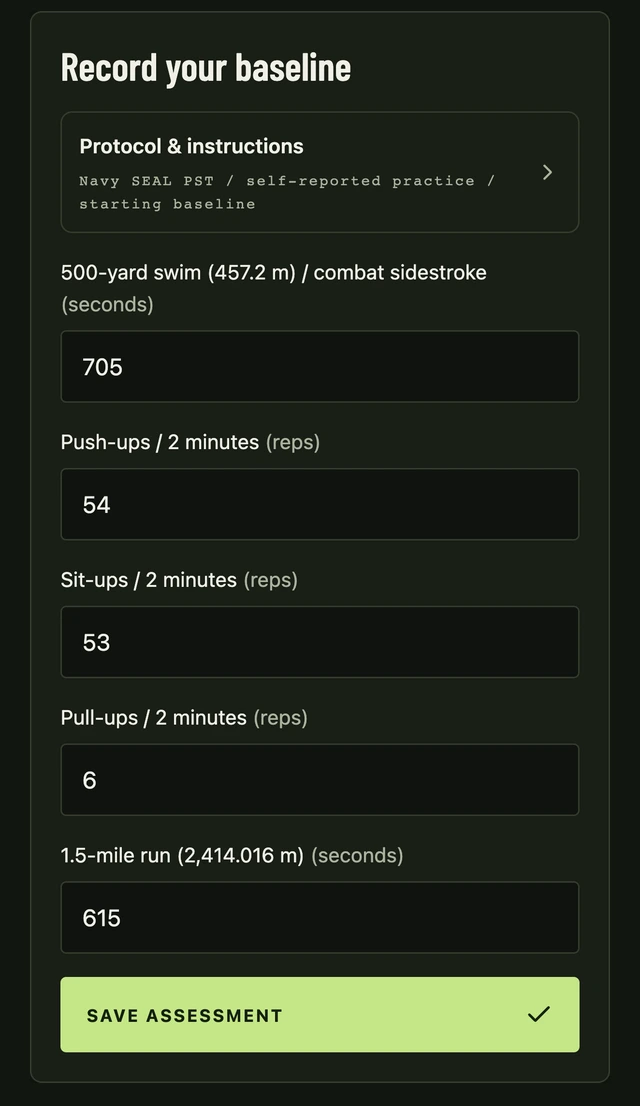
Test your baseline 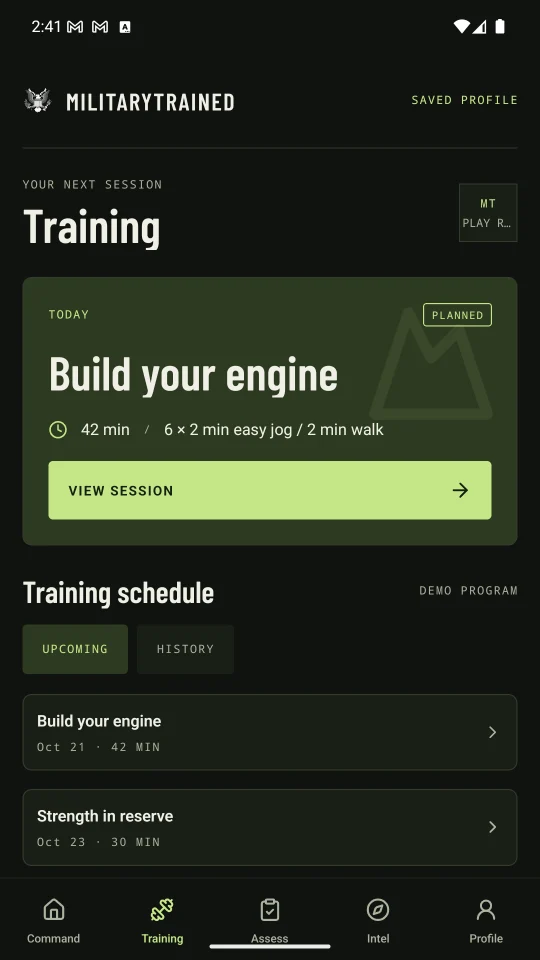
Training schedule 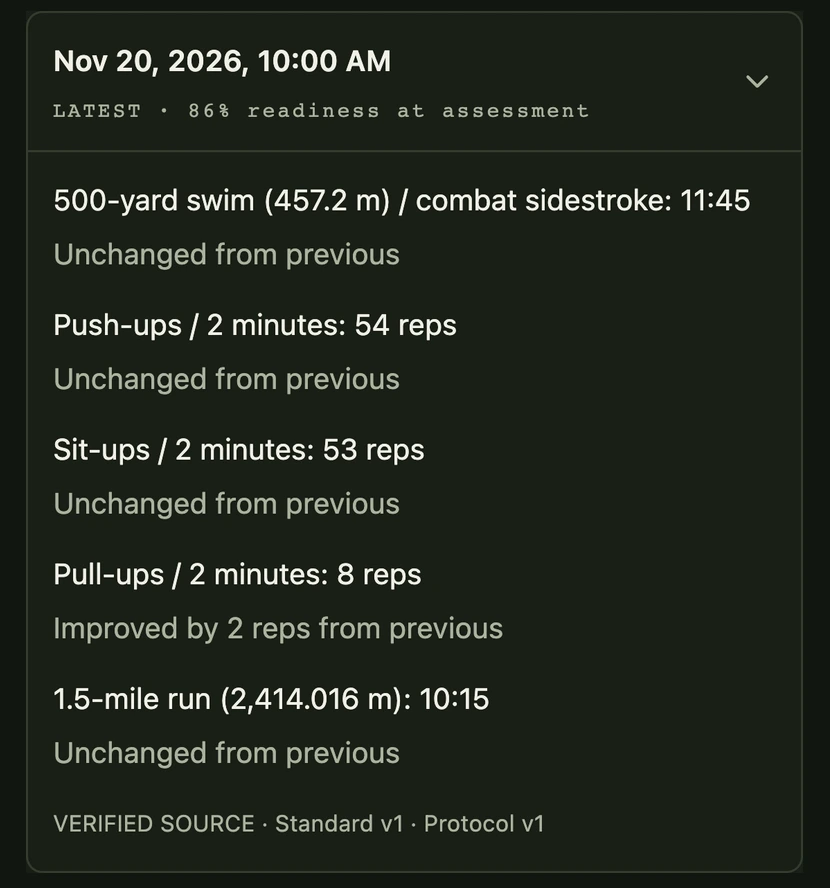
Track your progress
Choose your target
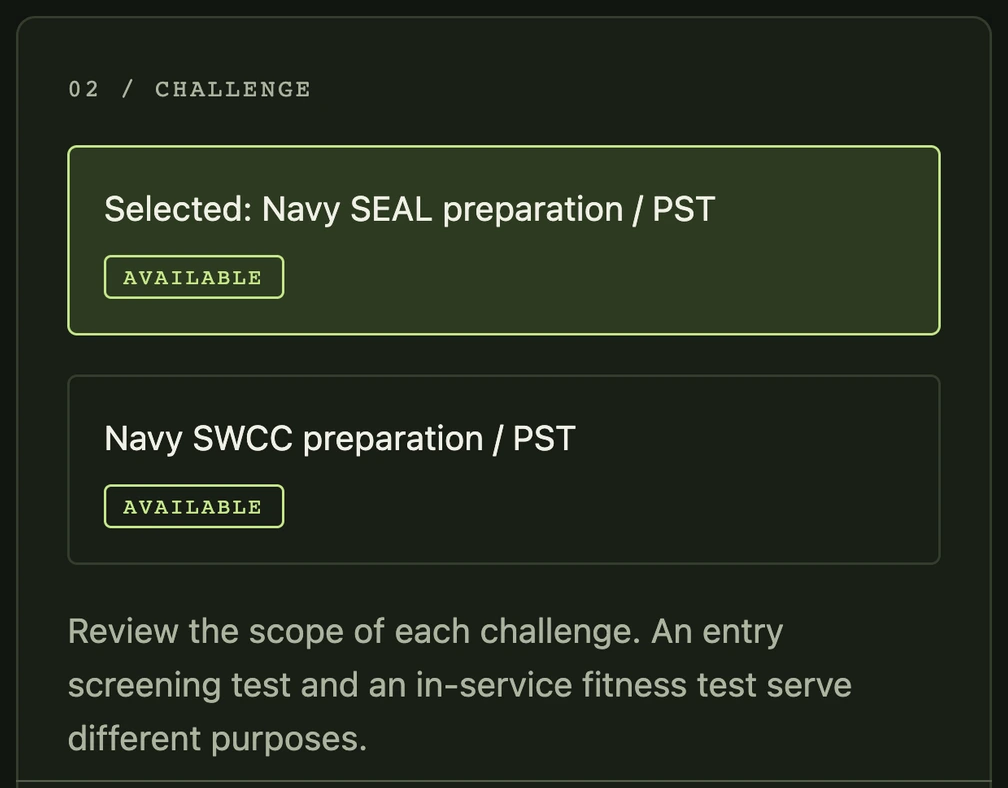
Open Goals and choose the test you want to prepare for. Free includes the Army infantry target. Pro adds other targets, including the Navy SEAL Physical Screening Test. Read the event requirements and their sources, then select Use this goal.
For the Army target, select the age band that applies to you. You will see five events with a points scale and an overall score. The Navy PST instead gives each event a minimum. If you are deciding between the two, the target comparison lists the events side by side.
Record your starting point
Open Assess for your chosen target. Read the protocol, enter each practice result in the units shown, and save the assessment. For example, the Navy SEAL practice screen asks for swim and run times in seconds and strength events in repetitions. Sign in to keep your results across sessions.
Keep the event distance and unit alongside your time when you take notes. A swim lasting 11 minutes and 45 seconds goes into a seconds field as 705. Repetition counts go in as whole numbers. These are the same measurements you will later see formatted in your history.
Find your next workout
Check your readiness screen to see which events meet the target and where you have a gap. Open Training to see the next session in your schedule. Free includes the standard guided routine. With Pro, you can build a routine around your assessment results and available days.
Log the session you actually completed
Open a workout on the calendar and review the exercises and equipment. Once you begin, the player takes you through the work and recovery steps. Use the timer for timed exercises and enter your actual count for repetition sets. You can pause when you need to step away.
At the end, review the completed steps and total reps. Use the notes field for a detail you want to remember, such as the equipment you used. Save the session to keep those details with the workout.
Compare your retest
Repeat the assessment for the same target and open the latest entry in your assessment history. Each event shows its previous result and the change. In the screenshot walkthrough, pull-ups increase from six to eight while the other four events stay steady.
Choose two attempts using the same standard and protocol to get an event-by-event comparison. A saved attempt keeps the score it had on the day you recorded it. On the current readiness screen, check the evidence dates to see which measurements the app is still using.